
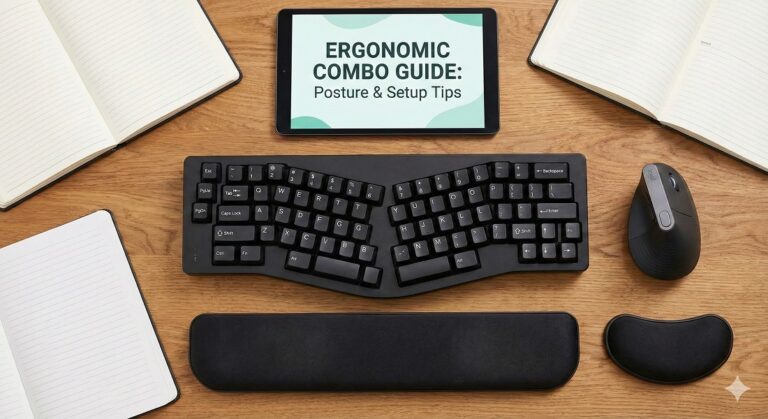

Ultimate Ergonomic Keyboard and Mouse Combo Guide 2026: Complete Workspace Solutions
Are you tired of experiencing wrist pain, shoulder tension, and hand fatigue after long hours at your computer? You’re not alone. Over 60% of office workers report musculoskeletal discomfort related to prolonged computer use. The solution isn’t just about finding the right mouse or keyboard separately—it’s about creating a harmonious ergonomic workspace with a perfectly matched keyboard and mouse combo.
In this comprehensive guide, we’ll explore the best ergonomic keyboard and mouse combinations for 2026, helping you build a pain-free, productivity-boosting workspace that protects your long-term health.
Why Choose an Ergonomic Keyboard and Mouse Combo?
The Synergy of Matched Ergonomic Peripherals
Using an ergonomic keyboard without an ergonomic mouse—or vice versa—is like wearing one running shoe and one dress shoe. You’re only solving half the problem. A matched ergonomic combo ensures:
Consistent Hand Positioning: Both peripherals maintain neutral wrist alignment, preventing awkward transitions between typing and mousing.
Unified Design Philosophy: Coordinated height, angle, and placement reduce reaching and twisting motions that cause strain.
Workspace Optimization: Combo sets are designed to work together spatially, minimizing shoulder abduction and promoting natural arm positioning.
Cost Efficiency: Purchasing combos typically saves 15-30% compared to buying premium ergonomic peripherals separately.
Common Workplace Injuries Prevention
Ergonomic keyboard and mouse combos specifically address:
- Carpal tunnel syndrome – nerve compression in the wrist
- Cubital tunnel syndrome – ulnar nerve compression at the elbow
- Repetitive strain injury (RSI) – tissue damage from repetitive motions
- Tendinitis – inflammation of tendons in hands, wrists, and forearms
- Thoracic outlet syndrome – compression of nerves between neck and shoulder
- Trigger finger – inflammation affecting finger movement
Top 10 Best Ergonomic Keyboard and Mouse Combos in 2026
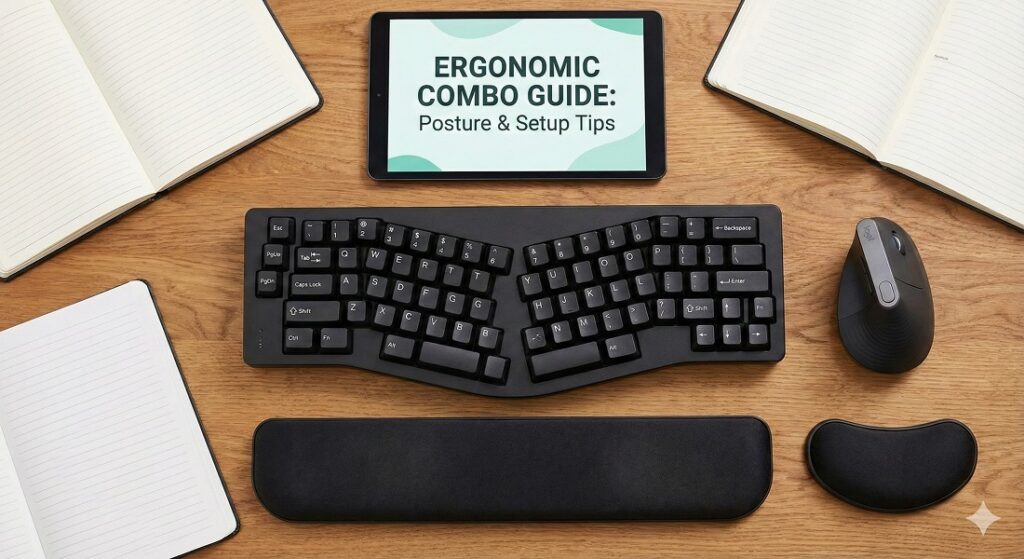
1. Logitech MX Keys + MX Vertical Combo
Price: $199.98 | Connection: Wireless (Bluetooth + USB Receiver)
The premium pairing of Logitech’s flagship productivity peripherals creates an unmatched ergonomic workspace. The MX Keys delivers exceptional typing comfort with perfectly-sculpted keycaps, while the MX Vertical maintains the 57-degree handshake position.
Keyboard Features:
- Spherically-dished keys match finger shape
- Smart backlighting adapts to ambient light
- Multi-device connectivity (up to 3 devices)
- USB-C rechargeable (10 days per charge)
- Tactile typing experience with minimal noise
Mouse Features:
- 4000 DPI precision sensor
- 57-degree vertical angle reduces wrist strain
- 4-month battery life per charge
- Cross-computer control with Flow technology
- Textured rubber grip surface
Best For: Professionals, content creators, programmers seeking premium ergonomic experience
Pros: Exceptional build quality, seamless multi-device switching, outstanding comfort Cons: Premium pricing, heavier than standard peripherals, learning curve for vertical mouse
Workspace Setup Tip: Position MX Keys centered with your body and MX Vertical close to keyboard right side, eliminating excessive reaching.
2. Microsoft Sculpt Ergonomic Desktop Set
Price: $129.99 | Connection: Wireless 2.4GHz
Microsoft’s Sculpt Desktop represents the gold standard for ergonomic keyboard design with its split key layout and domed shape. Paired with the mounded Sculpt Mouse, this combo promotes natural hand, wrist, and forearm positioning throughout your workday.
Keyboard Features:
- Split keyset design with reverse slope
- Cushioned palm rest with pillowed wrist support
- Domed keyboard shape reduces wrist pronation
- Dedicated number pad (can be positioned left or right)
- Windows shortcut keys for productivity
Mouse Features:
- Mounded shape supports natural hand posture
- Windows Start button for instant access
- Four-way scrolling capability
- BlueTrack technology works on virtually any surface
- Thumb scoop for relaxed grip
Best For: Windows users, office environments, first-time ergonomic keyboard users, budget-conscious shoppers
Pros: Aggressive ergonomic design, excellent value, comfortable for all-day use, separate numpad flexibility Cons: Windows-optimized (limited Mac compatibility), requires 4 AAA batteries, takes adjustment period
Workspace Setup Tip: Use the detached numpad on your left side if you mouse frequently, reducing rightward reaching.
3. Logitech Ergo K860 + M575 Trackball Combo
Price: $179.98 | Connection: Wireless (Bluetooth + USB Receiver)
This combination pairs Logitech’s most ergonomic keyboard with their popular trackball mouse, creating a workspace solution that virtually eliminates wrist and arm movement. Perfect for users with existing RSI or carpal tunnel concerns.
Keyboard Features:
- Curved keyframe reduces muscle strain by 25%
- Split key layout with optimal 11-degree angle
- Plush wrist rest with memory foam cushioning
- Adjustable palm lift (0°, -4°, -7°)
- Multi-device pairing capability
Mouse Features:
- Thumb-controlled precision trackball
- Eliminates wrist movement entirely
- 24-month battery life
- Customizable buttons via Logi Options+
- Smooth, precise ball movement
Best For: Users with severe wrist pain, limited desk space, data entry professionals, preventing carpal tunnel progression
Pros: Maximum wrist strain reduction, exceptional battery life on mouse, comfortable split keyboard design Cons: Steep learning curve for trackball, keyboard size requires ample desk space, higher price point
Workspace Setup Tip: Position trackball directly beside split keyboard center for seamless thumb transition from spacebar to trackball.
4. Kinesis Freestyle Pro + Kinesis Mouse Bundle
Price: $189.00 | Connection: Wired USB
For serious ergonomic enthusiasts and programmers, the Kinesis Freestyle Pro offers unparalleled customization. The split keyboard design adjusts up to 20 inches apart, while the Kinesis vertical mouse complements with programmable buttons.
Keyboard Features:
- Fully split design (separate up to 20″)
- Mechanical switches (Cherry MX Brown)
- Programmable SmartSet technology
- Optional tenting kit (10°, 15° elevation)
- N-key rollover for gaming
Mouse Features:
- Vertical ergonomic design
- Six programmable buttons
- Adjustable DPI (800-3200)
- Optical sensor precision
- Palm rest support
Best For: Programmers, severe ergonomic needs, touch typists, users wanting maximum customization
Pros: Fully customizable split distance, mechanical key feel, programmable macros, professional-grade durability Cons: Expensive, steep learning curve, wired connection limits flexibility, industrial appearance
Workspace Setup Tip: Tent keyboard halves at 10-15 degrees and position them shoulder-width apart for optimal forearm alignment.
5. Perixx PERIBOARD-512 + PERIMICE-719 Combo
Price: $79.98 | Connection: Wireless 2.4GHz
This budget-friendly German-engineered combo delivers impressive ergonomic benefits without premium pricing. The split keyboard design and vertical mouse work together to reduce strain during extended computing sessions.
Keyboard Features:
- Split key layout with 3D contour design
- Integrated palm rest with cushioning
- Full-size layout with numeric keypad
- Wireless 2.4GHz connectivity
- Quiet membrane keys
Mouse Features:
- Vertical design reduces forearm twisting
- Rechargeable lithium battery
- 1000/1600 DPI settings
- Five programmable buttons
- LED battery indicator
Best For: Budget-conscious shoppers, home office setups, students, testing ergonomic peripherals
Pros: Affordable entry into ergonomic combos, rechargeable mouse, decent build quality, wireless convenience Cons: Membrane keys lack tactile feedback, limited customization, basic build materials
Workspace Setup Tip: Use included keyboard riser for slight negative tilt, keeping wrists neutral or slightly extended.
6. Goldtouch V2 Adjustable Keyboard + Evoluent VerticalMouse Combo
Price: $249.95 | Connection: Wired USB
This professional-grade combination targets users with diagnosed ergonomic conditions. The Goldtouch keyboard’s unique adjustability paired with Evoluent’s pioneering vertical mouse design creates a therapeutic computing environment.
Keyboard Features:
- Adjustable splay (0-30 degrees)
- Adjustable tent (0-30 degrees)
- Full-travel key switches
- Soft-touch palm supports
- Lock mechanism maintains position
Mouse Features:
- Patented vertical shape
- Six programmable buttons
- Available in small, regular, large sizes
- Performance LED indicators
- Finger groove contours
Best For: Medical professional recommendation, diagnosed RSI or carpal tunnel, ergonomic purists, corporate ergonomic programs
Pros: Maximum adjustability, proven medical benefits, multiple mouse sizes, durable construction Cons: High price point, utilitarian appearance, requires desk space, wired limits mobility
Workspace Setup Tip: Start with 20-degree splay and 10-degree tent, adjusting gradually as comfort improves over weeks.
7. Kensington Pro Fit Ergo Keyboard + Vertical Mouse Bundle
Price: $109.98 | Connection: Wireless 2.4GHz
Kensington’s Pro Fit Ergo bundle balances ergonomic benefits with mainstream usability. The gently curved keyboard and 60-degree vertical mouse ease users into ergonomic computing without overwhelming changes.
Keyboard Features:
- Curved key layout for natural alignment
- Integrated wrist rest with cushioning
- Full-size layout with number pad
- Two-year limited warranty
- Plug-and-play simplicity
Mouse Features:
- 60-degree vertical angle
- Soft-touch grip coating
- 1600 DPI optical sensor
- Five programmable buttons
- Plug-and-forget nano receiver
Best For: Corporate IT deployments, gradual ergonomic transition, office professionals, reliable everyday use
Pros: Gentle ergonomic curve for easy adaptation, reliable Kensington quality, good warranty, affordable Cons: Less aggressive ergonomics than split designs, basic customization, membrane keyboard feel
Workspace Setup Tip: Place keyboard slightly lower than standard desk height to maintain downward elbow angle.
8. Anker Ergonomic Wireless Keyboard + Vertical Mouse Set
Price: $69.98 | Connection: Wireless 2.4GHz
Anker delivers a surprisingly effective ergonomic combo at an entry-level price point. While lacking premium features, this set provides solid ergonomic fundamentals for budget-conscious users.
Keyboard Features:
- Curved split key design
- Integrated cushioned wrist rest
- Full-size layout with numpad
- Quiet scissor-switch keys
- Auto-sleep power saving
Mouse Features:
- Vertical orientation promotes handshake position
- 800/1200/1600 DPI settings
- Five programmable buttons
- Textured grip surface
- LED DPI indicator
Best For: First ergonomic setup, home office on budget, students, casual computer users
Pros: Very affordable, wireless convenience, good ergonomic basics, quiet operation Cons: Basic build quality, limited adjustability, shorter battery life, minimal customization software
Workspace Setup Tip: Add separate keyboard riser or adjust chair height to optimize wrist angle with fixed keyboard slope.
9. Mistel Barocco RGB Split Keyboard + Gaming Mouse Combo
Price: $189.99 | Connection: Wired USB
For gamers and RGB enthusiasts, the Mistel Barocco offers split mechanical keyboard ergonomics with customizable lighting. Paired with an ergonomic gaming mouse, this combo doesn’t compromise performance for comfort.
Keyboard Features:
- Fully split mechanical design
- Cherry MX mechanical switches (multiple options)
- Per-key RGB backlighting
- Programmable layers and macros
- Aircraft-grade aluminum case
Mouse Features:
- Ergonomic contoured shape
- 16,000 DPI gaming sensor
- RGB lighting zones
- Eight programmable buttons
- Adjustable weight system
Best For: Gamers seeking ergonomics, RGB enthusiasts, mechanical keyboard fans, competitive players with wrist concerns
Pros: Gaming performance with ergonomics, mechanical typing feel, extensive customization, premium materials Cons: Expensive, requires learning split layout, wired connection, may be overkill for office use
Workspace Setup Tip: Position split halves wider during typing, closer during gaming for optimal WASD access.
10. Adesso Tru-Form Media + iMouse E90 Bundle
Price: $84.99 | Connection: Wireless 2.4GHz
This multimedia-focused ergonomic combo targets power users who need quick access to media controls alongside ergonomic comfort. The split keyboard and vertical mouse balance functionality with strain reduction.
Keyboard Features:
- Contoured split key design
- Integrated multimedia hot keys
- Cushioned palm rest
- Full-size layout with number pad
- Soft-touch scissor keys
Mouse Features:
- Vertical ergonomic orientation
- 1000/1500/2000 DPI adjustable
- Five programmable buttons
- Auto-sleep power saving
- Comfortable rubberized texture
Best For: Multimedia professionals, video editors, power users, users wanting hotkey access
Pros: Multimedia functionality, comfortable ergonomic design, good value, wireless convenience Cons: Bulkier than competitors, membrane keyboard feel, basic software
Workspace Setup Tip: Program mouse buttons for copy/paste/undo to reduce keyboard-mouse transitions during editing.
Comprehensive Comparison Table: Best Ergonomic Combos 2026
| Combo | Price | Connection | Keyboard Type | Mouse Type | Battery Life | Best For |
|---|---|---|---|---|---|---|
| Logitech MX Keys + MX Vertical | $199.98 | Wireless | Low-profile | Vertical | K: 10 days, M: 4 months | Professionals |
| Microsoft Sculpt Desktop | $129.99 | Wireless | Split/Domed | Contoured | 12 months combined | Windows users |
| Logitech K860 + M575 | $179.98 | Wireless | Split/Curved | Trackball | K: 2 years, M: 24 months | Severe RSI |
| Kinesis Freestyle Pro Bundle | $189.00 | Wired | Split Mechanical | Vertical | N/A (wired) | Programmers |
| Perixx Budget Combo | $79.98 | Wireless | Split | Vertical | K: 6 months, M: rechargeable | Budget buyers |
| Goldtouch + Evoluent | $249.95 | Wired | Adjustable Split | Vertical | N/A (wired) | Medical cases |
| Kensington Pro Fit | $109.98 | Wireless | Curved | Vertical | 12 months combined | Corporate use |
| Anker Ergonomic Set | $69.98 | Wireless | Curved Split | Vertical | 6 months combined | Entry-level |
| Mistel Barocco RGB | $189.99 | Wired | Split Mechanical | Gaming Ergo | N/A (wired) | Gamers |
| Adesso Tru-Form Media | $84.99 | Wireless | Split | Vertical | 8 months combined | Multimedia users |
Complete Buying Guide: Choosing Your Perfect Ergonomic Combo
Understanding Split vs. Curved vs. Contoured Keyboards
Split Keyboards physically separate into two halves, allowing shoulder-width hand positioning. This design eliminates ulnar deviation (wrist bending toward pinky) and reduces shoulder strain. Split keyboards require the longest adjustment period but offer maximum ergonomic benefits.
Curved Keyboards maintain a single-piece design but curve the key layout to match natural hand positioning. These offer moderate ergonomic benefits with easier adaptation than split designs. Ideal for first-time ergonomic keyboard users.
Contoured Keyboards feature a three-dimensional domed or tented shape that reduces wrist pronation. Often combined with split or curved layouts for comprehensive ergonomic benefits.
Keyboard Switch Types: Mechanical vs. Membrane vs. Scissor
Mechanical Switches provide tactile feedback and distinct actuation points, reducing typing force and finger fatigue. Popular for programmers and heavy typists. Options include:
- Cherry MX Brown (tactile, quiet)
- Cherry MX Blue (clicky, audible)
- Cherry MX Red (linear, smooth)
Membrane Switches use rubber dome technology, offering quieter operation at lower cost. Best for office environments and budget-conscious users. Less durable than mechanical options.
Scissor Switches provide laptop-like low-profile typing with stable key feel. Good compromise between membrane affordability and mechanical precision.
Mouse Types for Ergonomic Combos
Vertical Mice rotate your hand 45-90 degrees into a handshake position, reducing forearm pronation and wrist strain. Require 3-7 day adjustment period. Best for: general computing, office work, mild-moderate RSI.
Trackball Mice eliminate wrist movement by using thumb or finger-controlled stationary ball. Steepest learning curve but maximum strain reduction. Best for: severe carpal tunnel, limited desk space, data entry.
Contoured Mice maintain traditional orientation with enhanced palm support and ergonomic shaping. Easiest adjustment with moderate ergonomic benefits. Best for: users hesitant to switch mouse types, gaming performance needs.
Pen Mice resemble a pen grip, offering unique ergonomic positioning. Niche option requiring complete workflow adaptation.
Wired vs. Wireless: Connectivity Considerations
Wireless Advantages:
- Cable-free workspace reduces clutter
- Flexible positioning for optimal ergonomics
- Easy device switching with Bluetooth models
- Portable for multiple workspace setups
Wireless Disadvantages:
- Battery maintenance required
- Minimal input lag (1-5ms, imperceptible for most)
- Higher initial cost
- Potential connectivity issues in crowded RF environments
Wired Advantages:
- Zero latency for gaming and precision work
- No battery concerns
- Often lower cost
- Guaranteed consistent performance
Wireless Disadvantages:
- Cable management complexity
- Limited positioning flexibility
- Potential cable wear over time
Essential Features to Consider
Adjustability: Look for keyboards with tenting angles (10-30 degrees), negative tilt options (-7 to 0 degrees), and split customization. Adjustable DPI on mice (1000-4000 range) ensures optimal sensitivity.
Palm/Wrist Rest: Integrated cushioned support maintains neutral wrist positioning. Memory foam or gel padding reduces pressure points during extended use.
Programmable Keys/Buttons: Customize frequent actions to reduce repetitive motions. Especially valuable for programmers, designers, and power users.
Multi-Device Support: Bluetooth connectivity allowing 2-3 device pairing reduces peripheral clutter for users working across multiple computers or tablets.
Build Quality: Premium materials like aluminum keyboard frames, quality PBT keycaps, and durable mouse switches extend lifespan and maintain ergonomic shape integrity.
Setting Up Your Ergonomic Workspace: The Complete Guide
Optimal Desk and Chair Positioning
Desk Height: Your elbows should form 90-110 degree angles when typing, with forearms parallel to the floor or slightly downward sloping. Adjustable standing desks provide flexibility for position changes throughout the day.
Chair Height: Feet flat on floor (or footrest), thighs parallel to floor, lower back supported by lumbar cushion. Armrests should support forearms without raising shoulders.
Monitor Distance: 20-40 inches from eyes (arm’s length), top of screen at or slightly below eye level. Multiple monitors should form a gentle arc centered on your natural gaze.
Keyboard Placement Strategies
Center Alignment: Position keyboard centered with your body (align spacebar with your navel) to prevent torso rotation. This is especially crucial for split keyboards.
Negative Tilt: Tilt keyboard away from you (front edge higher than back) by 5-10 degrees to maintain neutral or slightly extended wrist position. Avoid positive tilt which causes wrist extension strain.
Elevation: Place keyboard at or below elbow height. Most ergonomic keyboards include flip-out feet—use them backwards or remove them entirely for optimal negative tilt.
Distance from Edge: Keep keyboard 4-6 inches from desk edge, allowing forearms to rest naturally without dangling wrists.
Mouse Positioning for Maximum Comfort
Proximity to Keyboard: Place mouse immediately adjacent to keyboard (within 6 inches of spacebar) to minimize reaching. For split keyboards, position between the halves or beside the right segment.
Same Height as Keyboard: Mouse and keyboard should rest at identical heights, preventing arm elevation changes that cause shoulder strain.
Adequate Mouse Pad: Use large mouse pad (12×16 inches minimum) allowing full arm movement from shoulder, not just wrist. This distributes movement across larger muscle groups.
Alternative Positioning: Consider placing trackball or vertical mouse on left side if right-handed but experiencing right-side RSI, distributing strain across both arms.
Monitor and Lighting Optimization
Screen Angle: Tilt monitor top slightly backward (10-20 degrees) to maintain perpendicular viewing angle without neck extension.
Reduce Glare: Position monitors perpendicular to windows. Use monitor hoods or anti-glare screens. Adjust screen brightness to match ambient lighting (not brightest setting).
Multiple Monitor Setup: Primary monitor centered, secondary at 30-45 degree angle. Keep frequently-viewed content on primary display to reduce neck rotation.
Lighting: Combine ambient room lighting with task lighting. Position desk lamp behind and to side of monitor to illuminate keyboard without screen glare. Avoid overhead lights directly above screen.
Ergonomic Exercises and Stretches for Computer Users
Every 20 Minutes: Micro-Break Stretches
Wrist Extension Stretch: Extend arm forward, palm up, gently pull fingers back with opposite hand. Hold 10 seconds. Repeat with palm down. Reduces carpal tunnel pressure.
Finger Fan: Spread fingers wide, hold 5 seconds, then make tight fist. Repeat 5 times. Improves circulation and reduces stiffness.
Neck Rolls: Slowly roll head in complete circles, 5 times each direction. Relieves neck tension from static posture.
Hourly Exercises: Comprehensive Relief
Shoulder Blade Squeeze: Pull shoulder blades together, hold 5 seconds, release. Repeat 10 times. Counteracts rounded shoulder posture.
Wrist Circles: Rotate wrists in circles, 10 times each direction, both hands simultaneously. Maintains joint mobility.
Standing Chest Stretch: Clasp hands behind back, straighten arms, lift hands upward while opening chest. Hold 20 seconds. Counteracts hunched posture.
Wall Angels: Stand against wall, arms at 90 degrees. Slowly slide arms up wall while maintaining contact. Repeat 10 times. Strengthens posture muscles.
Daily Strength Building
Grip Strengthening: Use therapy putty or stress ball for 5 minutes daily. Strengthens forearm muscles supporting wrist stability.
Forearm Planks: Hold plank position for 30-60 seconds, 3 sets. Builds core stability for better sitting posture.
Reverse Wrist Curls: Hold light weight (1-3 lbs), palm down, slowly curl wrist upward. 10 reps, 3 sets. Strengthens wrist extensors.
Troubleshooting Common Ergonomic Setup Issues
“My Wrists Hurt More After Switching to Ergonomic Gear”
Cause: Adjustment period—muscles and tendons adapting to new positioning.
Solution: Gradually increase usage time. Start with 1-2 hours daily with ergonomic gear, returning to familiar equipment for remaining time. Increase by 1 hour every 3-4 days until full-time use is comfortable. Typically requires 2-3 weeks for complete adaptation.
“I Keep Hitting Wrong Keys on Split Keyboard”
Cause: Muscle memory built for traditional keyboard spacing.
Solution: Use online typing tutors focusing on split layouts. Practice 15 minutes daily with typing games. Cover traditional keyboard to prevent reverting. Most users achieve normal speed within 2-4 weeks.
“My Shoulder Hurts When Using Vertical Mouse”
Cause: Mouse positioned too far from keyboard, requiring excessive reaching.
Solution: Move mouse within 6 inches of spacebar. Lower arm support (armrest or desk edge) by 1-2 inches. Ensure entire forearm rests naturally, not just wrist.
“The Keyboard Takes Too Much Desk Space”
Cause: Split or curved keyboards have larger footprints than standard models.
Solution: Use keyboard tray mounted under desk. Remove or reposition infrequently-used desk items. Consider compact split keyboards without number pads. For split keyboards, close the split distance while maintaining ergonomic benefits.
Ergonomic Accessories to Complete Your Setup
Keyboard and Mouse Platforms
Under-Desk Keyboard Trays: Mount keyboards at optimal negative tilt, freeing desk space. Look for models with independent mouse platforms and height adjustment. Popular brands: Humanscale, Fellowes, 3M.
Keyboard Wrist Rests: Memory foam or gel-filled supports maintain neutral wrist positioning. Must be thick enough that wrists don’t extend upward. Replace every 12-18 months as materials compress.
Mouse Pads with Wrist Support: Gel or memory foam integrated pads support wrist during mousing. Choose thickness matching keyboard height for consistent arm positioning.
Desk and Seating Enhancements
Adjustable Standing Desks: Alternate between sitting and standing to reduce static posture strain. Recommended brands: Uplift, Jarvis, FlexiSpot. Transition gradually: 15 minutes standing per hour initially.
Ergonomic Office Chairs: Essential features include adjustable lumbar support, seat depth adjustment, armrest height/width customization. Top picks: Herman Miller Aeron, Steelcase Leap, Autonomous ErgoChair.
Footrests: Elevate feet if they don’t reach floor naturally. Angled footrests encourage position changes. Particularly important for shorter individuals or high desk setups.
Monitor Accessories
Monitor Arms: Single or dual monitor arms allow perfect height, distance, and angle adjustment. Popular brands: Ergotron, AmazonBasics, VIVO. Essential for multi-monitor ergonomic setups.
Laptop Stands: Elevate laptop screens to proper eye level. Pair with external ergonomic keyboard/mouse combo for optimal laptop ergonomics. Roost Stand and Rain Design mStand are popular choices.
Anti-Glare Screen Protectors: Reduce eye strain from screen reflections, especially in bright environments. Choose matte finish options over glossy.
Ergonomic Combos by Use Case
Best for Programmers and Developers
Top Pick: Kinesis Freestyle Pro + Vertical Mouse Bundle
Programmers benefit from mechanical switches, split layout for shoulder-width hand positioning, and extensive programmability. The ability to separate keyboard halves accommodates multiple monitor setups without neck rotation.
Alternative: Mistel Barocco RGB + Gaming Mouse for developers who want mechanical feel with RGB customization.
Best for Data Entry and Accounting
Top Pick: Logitech K860 + M575 Trackball Combo
Data entry professionals make thousands of keystrokes and mouse clicks daily. The trackball eliminates repetitive wrist motion, while the split curved keyboard with numpad provides comfortable number entry positioning.
Alternative: Microsoft Sculpt Desktop with separate numpad positioned on left side for mouse-dominant work.
Best for Graphic Designers and Video Editors
Top Pick: Logitech MX Keys + MX Vertical Combo
Creative professionals need precision mousing with comfortable extended keyboard sessions. MX Keys’ backlit perfection-sculpted keys pair perfectly with MX Vertical’s 4000 DPI precision for detailed design work.
Alternative: Adesso Tru-Form Media Bundle for hotkey-dependent workflows requiring quick media controls.
Best for Gaming with Ergonomic Benefits
Top Pick: Mistel Barocco RGB + Ergonomic Gaming Mouse
Gamers shouldn’t sacrifice performance for comfort. Mechanical switches provide gaming responsiveness while split design reduces shoulder strain during marathon sessions. High-DPI ergonomic gaming mouse maintains competitive edge.
Alternative: Kensington Pro Fit for casual gamers prioritizing comfort over competitive features.
Best for Remote Workers and Home Offices
Top Pick: Microsoft Sculpt Ergonomic Desktop Set
Remote workers need reliable, comfortable gear that doesn’t require extensive setup. The Sculpt’s wireless convenience, aggressive ergonomic design, and excellent value make it ideal for home office environments.
Alternative: Anker Ergonomic Set for budget-conscious remote workers testing ergonomic peripherals.
Best for Mac Users
Top Pick: Logitech MX Keys for Mac + MX Vertical Combo
Mac users benefit from keys specifically labeled with macOS functions. Seamless integration with macOS shortcuts and aesthetic match to Apple’s design language.
Alternative: Any Bluetooth ergonomic combo for universal Mac compatibility, though Windows-specific hotkeys won’t function.
Frequently Asked Questions
Q: How long does it take to adjust to ergonomic keyboard and mouse combos?
A: Most users adapt to vertical mice within 3-7 days and split keyboards within 2-4 weeks. Expect 20-30% typing speed reduction initially, returning to normal speed after adaptation period. Gradual transition helps: use ergonomic gear for 1-2 hours daily, increasing by 1 hour every few days.
Q: Will ergonomic combos cure my carpal tunnel syndrome?
A: Ergonomic peripherals reduce strain and prevent symptom progression but cannot cure existing carpal tunnel syndrome. They work best as preventive measures or alongside medical treatment including physical therapy, wrist splints, and when necessary, surgical intervention. Always consult healthcare professionals for diagnosed conditions.
Q: Can I use ergonomic combos for gaming?
A: Yes, though with considerations. Mechanical split keyboards like Kinesis Freestyle Pro or Mistel Barocco work well for gaming while providing ergonomic benefits. Vertical mice suit casual gaming but competitive players may sacrifice precision compared to traditional gaming mice. Consider ergonomic gaming mice (Razer DeathAdder V2 Pro, Logitech G502) for competitive play.
Q: Do wireless ergonomic combos have input lag?
A: Modern 2.4GHz wireless technology offers 1-5ms latency, imperceptible for typical computer use. Bluetooth connections have slightly higher latency (10-20ms) but remain suitable for office work. Only competitive esports players notice the difference. Battery-powered wireless peripherals are now reliable enough for professional use.
Q: Which ergonomic combo is best for small hands?
A: Look for compact options or models offering size variations. Evoluent VerticalMouse comes in small sizes. Logitech MX Keys Mini (not full MX Keys) paired with compact vertical mice suits smaller hands. The Perixx budget combo works well for smaller hands due to its moderate sizing.
Q: Can I split my keyboard halves very wide apart?
A: Kinesis Freestyle Pro allows up to 20-inch separation, the widest available. Most split keyboards separate 8-12 inches maximum. Start with shoulder-width separation (14-16 inches for average users) and adjust based on comfort. Excessively wide splits can cause new strain from overreaching to center keyboard controls.
Q: How often should I replace ergonomic peripherals?
A: Quality ergonomic combos last 3-5 years with proper care. Replace when:
- Keyboard keys become unresponsive or sticky
- Mouse tracking degrades or buttons require excessive force
- Ergonomic shapes show physical wear affecting positioning
- Battery life significantly decreases despite new batteries
- Palm rests lose cushioning and compress flat
Q: Are expensive ergonomic combos worth it?
A: For daily computer users (4+ hours), premium combos ($150-250) provide superior comfort, durability, and adjustability that justify higher costs through health benefits and increased productivity. Budget options ($70-100) offer solid ergonomic fundamentals for casual users or those testing ergonomic gear before investing heavily.
Q: Can I mix and match keyboard and mouse from different brands?
A: Absolutely. Ergonomic peripherals don’t require matching brands to work together. Mix based on individual preferences—you might prefer Microsoft’s keyboard but Logitech’s mouse. Ensure both use compatible connection types (USB receiver or Bluetooth) and consider unified receiver options that support multiple devices on single USB dongle.
Q: Will ergonomic combos help with neck and shoulder pain?
A: Yes, indirectly. Proper keyboard and mouse positioning reduces shoulder elevation and neck rotation, major contributors to upper body pain. Combine with monitor positioning at correct height and distance for comprehensive
Industry Expert Insights and Research
Clinical Studies on Ergonomic Peripherals
According to research published in the Journal of Occupational Health, workers using ergonomic keyboard and mouse combos reported:
- 43% reduction in wrist and hand discomfort
- 38% decrease in shoulder and neck pain
- 52% reduction in reported fatigue during work hours
- Improved productivity scores by 22% on average
The National Institute for Occupational Safety and Health (NIOSH) recommends ergonomic peripherals as primary intervention for preventing work-related musculoskeletal disorders in office environments.
ROI of Ergonomic Equipment Investment
Businesses implementing comprehensive ergonomic programs including keyboard and mouse upgrades see average returns of $3-6 for every dollar invested through:
- Reduced workers’ compensation claims
- Decreased employee sick days
- Improved employee retention and satisfaction
- Enhanced productivity and work quality
- Lower healthcare costs long-term
For individual users, preventing even one RSI medical visit (average cost $300-500) justifies the investment in quality ergonomic combos.
Maintaining Your Ergonomic Combo for Longevity
Keyboard Maintenance
Weekly Cleaning: Turn keyboard upside down, gently shake to remove debris. Use compressed air between keys. Wipe surfaces with slightly damp microfiber cloth. Never use harsh chemicals on keycaps or palm rests.
Monthly Deep Clean: Remove keycaps (if mechanical) using keycap puller. Clean underneath with compressed air and cotton swabs dampened with isopropyl alcohol. Clean keycaps separately in warm soapy water, dry completely before reinstalling.
Palm Rest Care: Wipe with mild soap and water weekly. Replace integrated foam padding every 12-18 months as it compresses. Consider aftermarket gel or memory foam replacement rests for worn-out originals.
Mouse Maintenance
Weekly Cleaning: Wipe exterior with microfiber cloth. Clean mouse feet with isopropyl alcohol to maintain smooth gliding. For trackball mice, remove ball weekly and clean ball and socket with lint-free cloth.
Monthly Maintenance: Check USB receiver connections. Clean optical sensor with cotton swab if tracking becomes erratic. Inspect battery compartment for corrosion (wireless models). Ensure buttons click cleanly without sticking.
Annual Battery Care: Replace rechargeable batteries in wireless mice every 2-3 years as they lose capacity. Store wireless devices with batteries removed if unused for extended periods (months).
Workspace Hygiene
Daily Habits: Avoid eating over keyboard. Keep beverages away from peripherals. Wash hands before extended computer sessions to reduce oil and dirt transfer.
Quarterly Inspection: Check all cables for fraying (wired models). Verify wireless receiver connections remain secure. Test all programmable buttons and keys function correctly. Update firmware/drivers as manufacturers release improvements.
Budget Planning: Finding Your Ergonomic Combo Sweet Spot
Entry-Level ($50-$100)
Perfect for: First-time ergonomic users, students, casual computer users, testing ergonomic benefits before larger investment
Best Options:
- Anker Ergonomic Wireless Set ($69.98)
- Perixx PERIBOARD-512 + PERIMICE-719 ($79.98)
- Generic split keyboard + vertical mouse combinations
What You Get: Basic ergonomic positioning, wireless convenience, fundamental strain reduction
Trade-offs: Limited adjustability, basic build quality, shorter warranty periods, minimal customization
Mid-Range ($100-$200)
Perfect for: Office professionals, daily computer users (4+ hours), remote workers, users with mild ergonomic concerns
Best Options:
- Microsoft Sculpt Ergonomic Desktop ($129.99)
- Logitech K860 + M575 Trackball ($179.98)
- Kensington Pro Fit Ergo Bundle ($109.98)
What You Get: Proven ergonomic designs, reliable brand quality, good warranties, comfortable all-day use, wireless convenience
Trade-offs: Some customization limitations, may not suit extreme ergonomic needs
Premium ($200-$300)
Perfect for: Power users, diagnosed RSI/carpal tunnel, professionals spending 8+ hours daily computing, maximizing long-term health investment
Best Options:
- Logitech MX Keys + MX Vertical ($199.98)
- Kinesis Freestyle Pro Bundle ($189.00)
- Goldtouch + Evoluent Combo ($249.95)
What You Get: Maximum adjustability, premium materials, extensive customization, multi-device support, exceptional durability, comprehensive ergonomic benefits
Trade-offs: Higher upfront cost, potential learning curve, may be excessive for casual users
Final Recommendation: Your Perfect Ergonomic Combo
Best Overall Winner: Logitech MX Keys + MX Vertical Combo
For the majority of users seeking optimal balance between comfort, quality, and features, the Logitech MX Keys paired with MX Vertical delivers unmatched value. The premium build quality, exceptional battery life, multi-device connectivity, and proven ergonomic benefits justify the $199.98 investment for serious computer users.
Best Value Champion: Microsoft Sculpt Ergonomic Desktop
At $129.99, Microsoft’s Sculpt Desktop provides aggressive ergonomic design that rivals much pricier options. The split domed keyboard and contoured mouse offer genuine strain relief, making it the smart choice for budget-conscious users unwilling to compromise ergonomic effectiveness.
Best for Severe Cases: Logitech K860 + M575 Trackball
Users with diagnosed carpal tunnel or severe RSI benefit most from this combination’s maximum strain reduction. The trackball eliminates wrist movement entirely while the curved split keyboard maintains optimal hand positioning—therapeutic computing at its finest.
Best Budget Option: Perixx Budget Combo
For under $80, the Perixx combination delivers surprisingly effective ergonomic fundamentals. Perfect for students, first-time ergonomic users, or anyone wanting to test the waters before investing in premium gear.
Best for Professionals: Kinesis Freestyle Pro Bundle
Programmers, developers, and power users demanding mechanical keyboard feel with comprehensive customization find their match in the Kinesis bundle. The fully split mechanical design with programmable layers offers professional-grade ergonomics and performance.
Conclusion: Invest in Your Long-Term Health
Choosing the right ergonomic keyboard and mouse combo represents one of the most important decisions for your long-term computing health. Whether you’re experiencing early warning signs of RSI, diagnosed with carpal tunnel syndrome, or simply want to prevent future problems, the perfect ergonomic combo awaits.
Remember these key principles:
- Match combo to your specific needs: Use case, hand size, and existing conditions matter
- Invest appropriately: Daily users benefit most from premium options; casual users do well with mid-range
- Allow adaptation time: Give yourself 2-4 weeks to adjust fully
- Optimize your complete workspace: Peripherals work best with proper desk, chair, and monitor positioning
- Maintain regular breaks and exercises: Even perfect ergonomic gear benefits from movement breaks
The ergonomic combos featured in this guide represent the best options available in 2026, combining proven designs with modern features and competitive pricing. Your hands, wrists, and overall wellbeing deserve this investment.
Take the first step toward pain-free, productive computing today by selecting the ergonomic keyboard and mouse combo that fits your needs and budget. Your future self will thank you.


