
Best Keyboard for Programming in 2026 – Top Picks for Coders
If you work as a programmer your keyboard is practically your best buddy. If you are looking for the best keyboard for programming, the right programming keyboard is not just a peripheral — it directly shapes how comfortable, productive, and healthy your workday is. Think about it: you devote hours every day crafting code, eliminating bugs, and generally creating the magic. Picking any keyboard and wishing for the best is not an option. You need something that really helps you do your best work and makes your life simpler. This guide covers the best keyboards for programmers, the best mechanical keyboard for programming, the best ergonomic keyboard for coding, and everything else you need to know before you buy a new keyboard for coding.
For the keyboard, what should you look for? First, it has to be comfortable. After a long coding session, you don’t want your hands and wrists aching. That means finding a keyboard that lets you type effortlessly and smoothly all day. A comfortable, ergonomic keyboard for coding with a sensible layout and a good set of switches is the foundation of a healthy programming setup.
And the keyboard may be customized! Think being able to configure your keyboard such that your most often used commands are only a key press apart. Right? That would save a lot of time. When all you have to do is tap a single key, no longer will you need to dig menus or write lengthy lines of code. Programmable keyboards with QMK or VIA support make this kind of remapping possible on modern boards.
Finally, the best keyboard enables you to keep your hands on the keys and off the mouse as much as possible. Changing between the keyboard and mouse slows you down considerably. Anything that lowers mouse usage will improve your output and expedite your processes.
In essence, as a programmer, a good keyboard is a financial commitment in your sanity, effectiveness, and comfort. Select thoughtfully! If you also write for a living, pair this guide with our roundup of the best keyboards for writers and fast typing — many of those picks overlap with good coding boards.
Quick Answer: What Is the Best Keyboard for Programming in 2026?
There is no single best keyboard for programming, because the right choice depends on your workflow, your comfort needs, and your budget. That said, most developers end up choosing between a few proven categories: a compact mechanical keyboard (a 75% or tenkeyless layout) for the best balance of function and desk space, a split ergonomic keyboard if you already feel wrist or forearm strain, and a wireless low-profile keyboard if you move between devices and operating systems. This updated guide covers the best mechanical keyboards for programmers, the best ergonomic keyboards for coding, and everything you should check before you buy.
- Best for wrist pain and RSI prevention: a split, tented or contoured ergonomic keyboard such as the Kinesis Advantage2 reviewed below.
- Best budget ergonomic option: the Microsoft Sculpt Ergonomic Keyboard.
- Best compact mechanical keyboard: the CM Storm QuickFire Rapid (an older model that is now hard to find new — the Keychron V1 in our 2026 picks below is the modern equivalent) or the Happy Hacking Professional2 if you want an even smaller footprint.
- Best for customization: any board with hot-swappable switches and QMK/VIA remapping (see our newer 2026 picks further down).
Last updated: November 2026. Prices, models, and availability change often, so always check the latest listing before you buy.
Best Mechanical Keyboard for Programming Video Guide
Video roundups are a useful way to hear and see the keyboards in this guide before you buy. Look for a recent 2026 video roundup that covers the models below — most programming-keyboard videos follow a similar chapter order:
Typical chapters: Intro · DROP MDX-22176-14 · Corsair K70 PRO RGB · Logitech MX Mechanical · KEEBMONKEY WOBKEY Rainy 75 CNC · NuPhy Air75 V2 · Das Keyboard 4 · Keychron K3 Pro
When you watch, pay attention to the sound of the switches, the keycap profile, and whether the board keeps a full function row and arrow keys — those details matter more for coding than RGB lighting.
Top Selling Keyboard for Programming and Coding – Complete Guide
[amazon bestseller=”Programming keyboard” items=”10″ template=”table”]
List – Top Keyboard for Programming and Coding (Best Mechanical and Ergonomic Keyboards for Programmers Compared)
| Product | Type | Layout | Best For | Price |
|---|---|---|---|---|
| Kinesis Advantage2 Keyboard | Mechanical | Split ergonomic | Best ergonomic keyboard overall | Check Price |
| Microsoft Sculpt Ergonomic Keyboard | Membrane | Split ergonomic | Best budget ergonomic keyboard | Check Price |
| Das Keyboard 4 | Mechanical | Full-size | Best durable smart keyboard | Check Price |
| Happy Hacking Professional2 Keyboard | Mechanical (Topre) | 60% compact | Best portable keyboard | Check Price |
| CM Storm QuickFire Rapid | Mechanical | Tenkeyless | Best compact mechanical keyboard | Check Price |
Kinesis Advantage2 Keyboard – Best Ergonomic Keyboard General (Best Ergonomic Keyboard for Programmers with Wrist Pain)
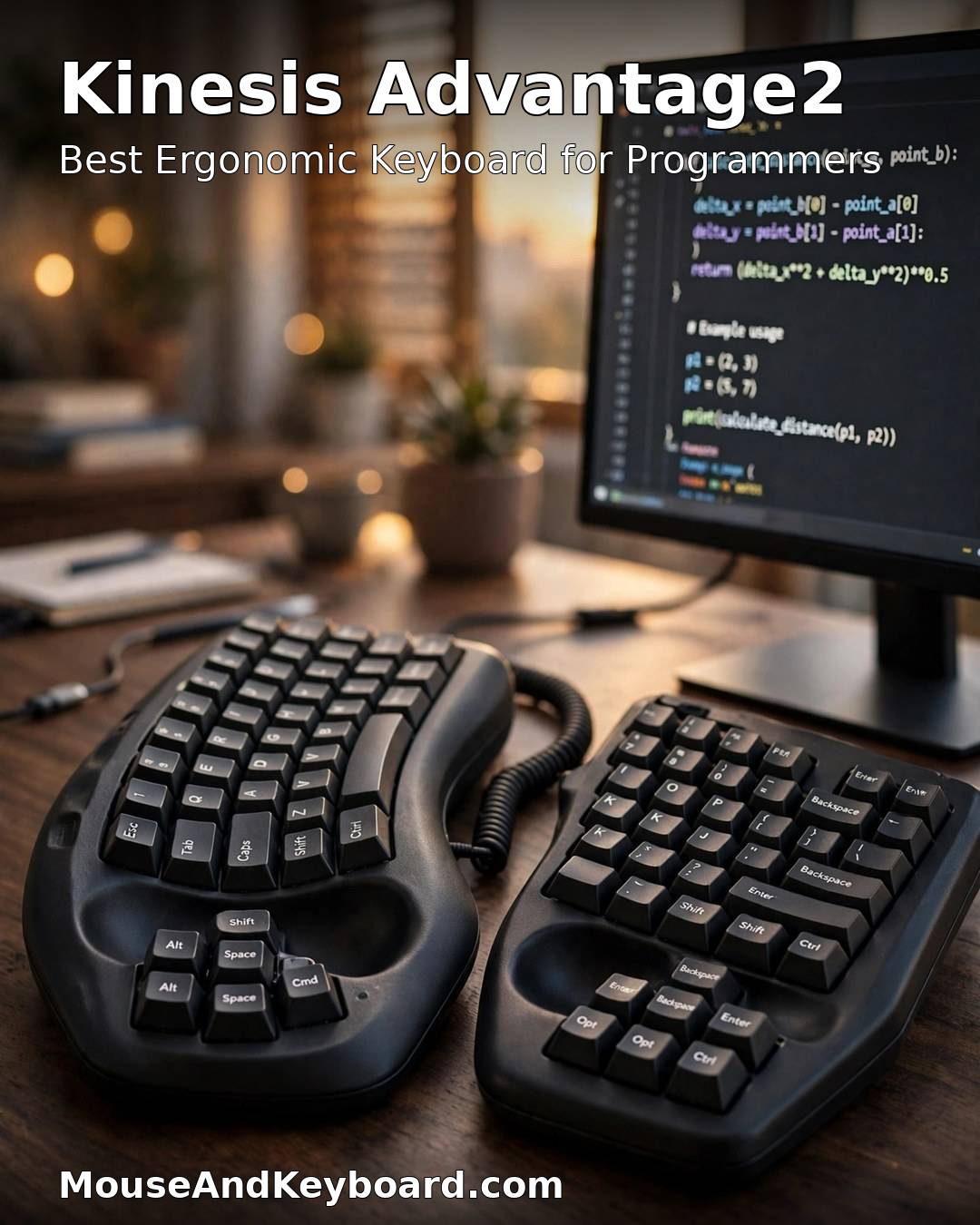
If you frequently experience wrist pains, I highly recommend the Kinesis Advantage 2 keyboard. It features a unique design with several features to provide comfortable use for extended periods. The keys are split into two sections and positioned in a contour on each side of the keyboard. At first, I was unsure how this would help, but once I started typing, I noticed the benefits. The split design improves thumb functionality with two thumb clusters. The right cluster includes the CTRL, Enter, and Space keys, while the left cluster contains the Backspace, Delete, and Alt buttons.
Moreover, my hands felt naturally positioned, allowing me to type comfortably throughout the day, not only relieving strain on my wrists but also my shoulders. The split design ensures that my arms extend straight from the shoulder, rather than forming the usual V shape. I must admit that typing on this keyboard can be challenging initially, and it may take some time to regain your normal typing speed.
However, once you adapt to it, there’s no going back. If you’re having difficulty adjusting to the layout, the keyboard includes a smart programming engine with onboard remapping. This feature allows you to customize the button assignments in various ways. You can create and save different layouts, assigning any alphanumeric key as a hotkey for easy access. The key responsiveness is also impressive, thanks to the use of Cherry MX Brown switches. The keyboard is compatible with both Windows PC and Mac computers, and it doesn’t require any special drivers for programming.
Who is the Kinesis Advantage2 best for? This is a strong choice for developers who code six to ten hours a day, who already feel tension in the wrists, forearms, or shoulders, or who simply want to prevent repetitive strain injury (RSI) before it starts. Its contoured keywells keep your fingers on a natural curve, and the thumb clusters move heavy-use keys like Enter, Backspace, Space, and Ctrl away from your weaker pinkies. If you write a lot of code with shortcuts and modifier keys, that thumb-cluster layout can noticeably reduce finger travel and strain.
What to expect in the first weeks: plan for a short adjustment period. Many programmers report a temporary drop in typing speed while their hands learn the new key positions, so it helps to switch during a calmer stretch of work rather than right before a deadline. The onboard remapping and saved layouts make it easier to tune the keyboard to your editor, whether you work in VS Code, JetBrains IDEs, Vim, or Emacs. If you want a newer wireless alternative in the same ergonomic family, see the Kinesis Advantage360 in our 2026 picks section below.
Top Features
[amazon box=”B01KR1C5PY” template=”horizontal” ]
Microsoft Sculpt Keyboard – Best Budget Ergonomic Keyboard (Affordable Ergonomic Keyboard for Coding)
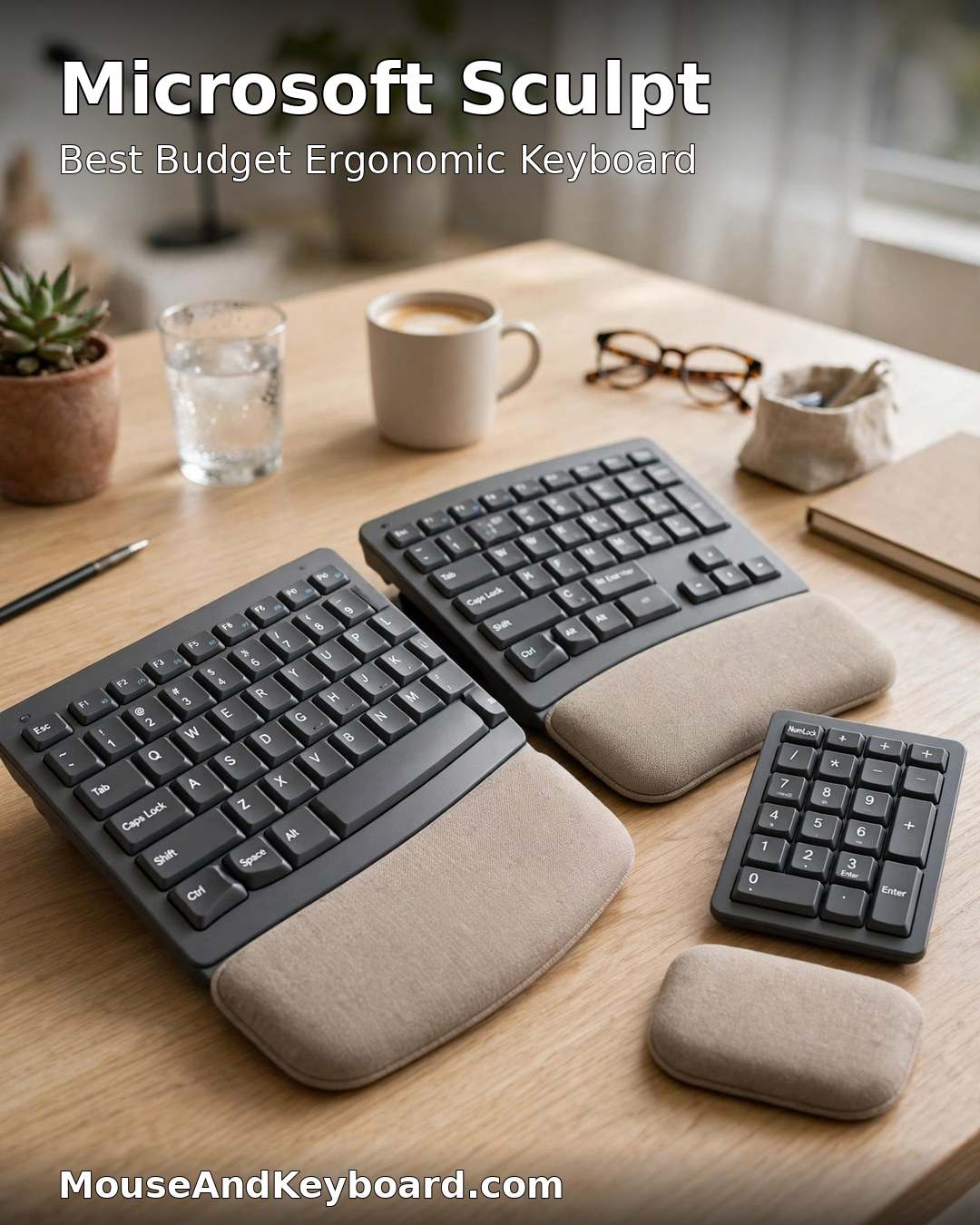
Microsoft Sculpt is one other keyboard I extremely suggest for work ergonomics. It’s simpler than the Kinesis and significantly cheaper. Nonetheless, they use completely different methodologies so it could be unfair to match them. In contrast to the Kinesis, this keyboard splits the keys into two by fully eradicating a bit of fabric between them. Nonetheless, the motivation behind that is nonetheless identical. Place your fingers and arms in an extra pure place whereas decreasing the quantity of pressure concerned in typing. And it does this excellently. I had a lot simpler time typing on this keyboard in comparison with the Kinesis, nevertheless, it nonetheless requires some follow before you’ll be able to adapt. One thing else I preferred is the unfavorable tilt. It’s completely different from the ahead elevate on most keyboards, however, it’s surprisingly snug.
It’s additionally strengthened by a padded wrist relaxation that ensures you don’t bend your wrist an excessive amount of. The palm relaxation attaches to the keyboard by a magnet, and you may take away it should you choose typing in your lap. And what’s higher is that the lean is adjustable. You possibly can experiment on completely different heights to seek out one that’s most snug for you. The keys are additionally barely bigger than most keyboards. I might inform as a result of there have been much fewer typing errors. Most errors I made got here from not being accustomed to the keyboard. However, my spotlight characteristic for the Microsoft Sculpt must be the separate num pad. The primary cause I do not use the num pad is because of its awkward positioning. I’ve to stretch to succeed in it. Now I can place it in an extra handy place. The keypad responsiveness is fast and felt like the proper integration between a laptop and a desktop. It’s wi-fi, so you do not have to fret about tangles.
Who is the Microsoft Sculpt best for? If you want an ergonomic keyboard for programming without a premium price tag, the Sculpt is one of the easiest ways to try a split, curved layout. It is a membrane keyboard, so it does not offer the crisp tactile feedback of a mechanical keyboard, but it is quiet, which makes it a good fit for shared offices, open-plan workspaces, and late-night coding sessions. The detachable palm rest and separate number pad are especially handy if you work with spreadsheets or numeric data alongside your code.
Things to keep in mind: because it is a budget ergonomic keyboard, it lacks the deep customization of programmable mechanical boards. If you rely heavily on custom macros or layers, you may eventually want to step up to a QMK or VIA keyboard. For developers who just want a comfortable, wireless, low-cost way to reduce wrist strain, it remains a sensible starting point.
Top Features
[amazon box=”B00CYX26BC” template=”horizontal” ]
Check Latest Price and User Reviews on Amazon
Das Smart Mechanical Keyboard – Best Sensible Keyboard (Best Smart Mechanical Keyboard for Developers)
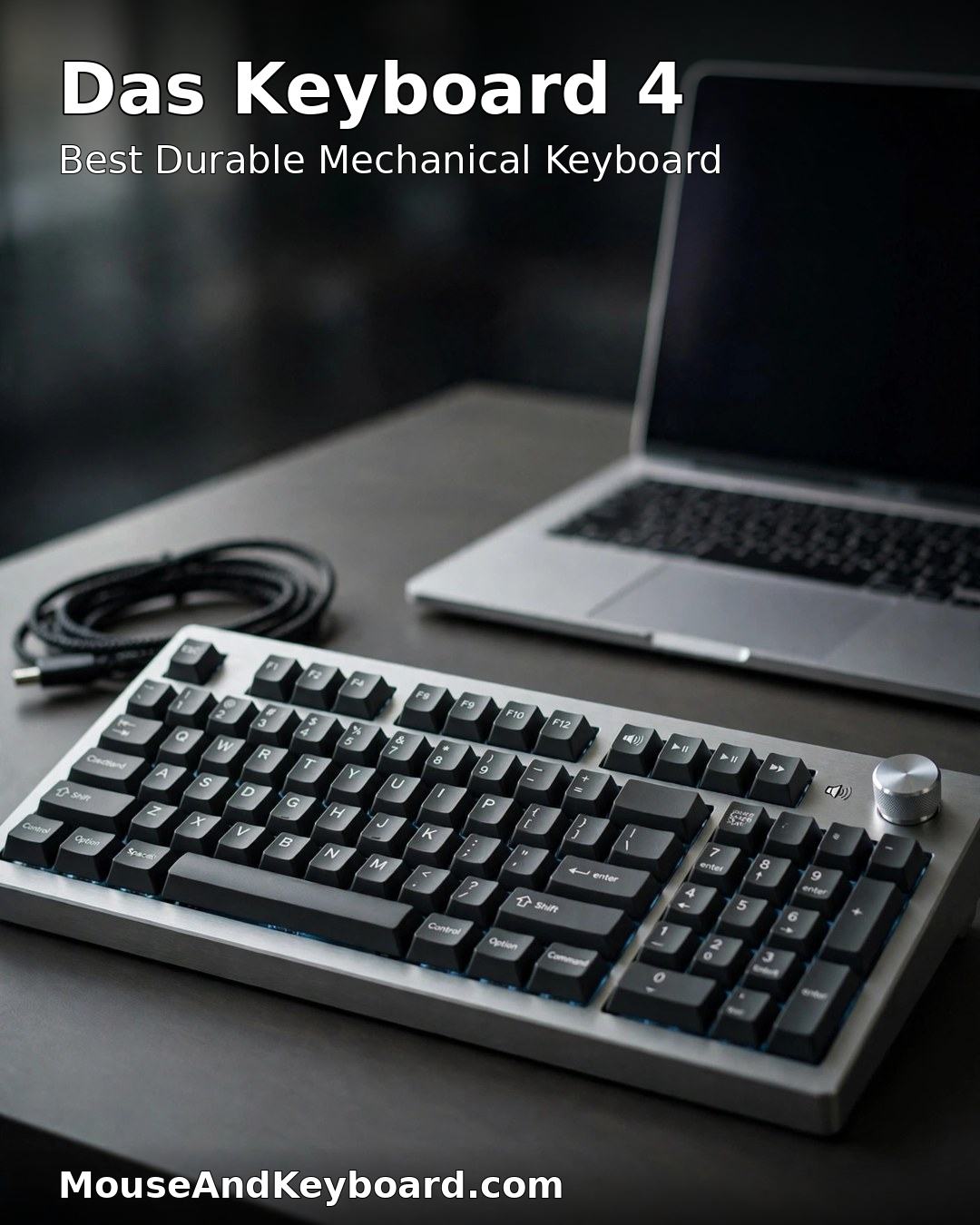
This keyboard is, without doubt, one of the sturdiest keyboards I’ve reviewed, and I attribute it to the aluminium top panel. I say this as a result of I utilized a good quantity of power on it in an try and bend it and it took it like a champ. It might not be the wisest factor to do, however, at the least, it’s secure to conclude this keyboard can deal with just a few falls. Das keyboard has moved from the standard Cherry MX switches we’re used to and is as a substitute utilizing gamma Zulu switches. They declare that these switches can final for about 100 million keypresses. That’s about 2x the MX. I can’t verify this, however, I can attest that they do really feel completely different. They’re softer and really feel like a fusion between black and brown Cherry MX switches. One in all my favourite characteristic on this keyboard is the wrist relaxation. It’s tremendous snug and made me sort just a little sooner.
The volume knob and three dedicated media buttons on the top proper are additionally fairly helpful in controlling media in your PC. And what’s higher, now you can assign all of the 12 perform keys to different duties. However, I discovered the volume knob to be a bit bulky and far more durable to deal with. However now to reply to the largest query. Why this keyboard is named good. It’s appropriate with the IFTT protocol or in any other case put the ‘IF THIS THEN THAT’ protocol. You possibly can set numerous keys to warn you when there’s some exercise on-line or round you.
As an illustration, you’ll be able to set it to inform you when there’s a new touch upon a thread you might be following on stack overflow. Or an extra sensible instance, I programmed it to alert me when my cellphone was ringing. You may not hear it ring while coding, however, you will not miss the blinking keys. They’ve used laser etching to label their keyboards thus no possibilities of them carrying off.
Who is the Das Keyboard best for? This is a good match for programmers who want a durable, full-featured mechanical keyboard with extras that go beyond typing. Dedicated media controls, a volume knob, and programmable function keys help you stay in your editor, while the smart notification features let backlit keys signal events such as new messages or build status. Developers who work with continuous integration, monitoring dashboards, or alerts may find the notification angle genuinely useful, since a glance at the keyboard can replace a window switch.
Why durability matters for a coding keyboard: a sturdy frame, laser-etched keycaps, and long-life mechanical switches help a keyboard survive years of daily use. Spending more on a well-built mechanical keyboard often works out cheaper than replacing a flimsy board every year or two..
Top Features
[amazon box=”B0876G6GG2″ template=”horizontal” ]
Check Latest Price and User Reviews on Amazon
Happy Hacking Professional2 Keyboard – Best Moveable Keyboard (Best Portable Compact Keyboard for Programmers)
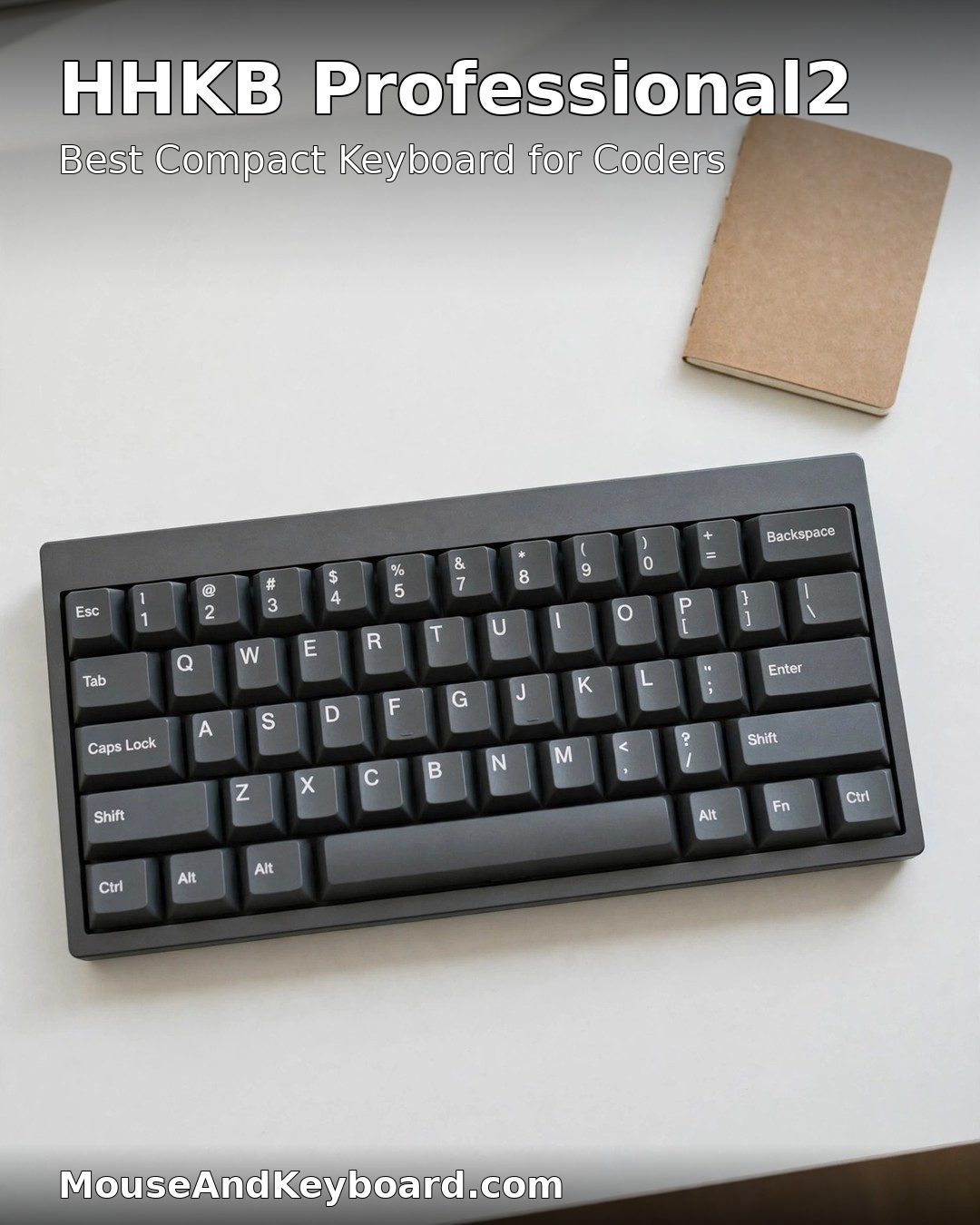
This keyboard adopts a minimalist design approach. It eliminates the numpad, navigation keys, and function keys, making it even smaller than a Tenkeyless keyboard. The first thing I noticed was how much less strain I felt on my hands while typing. It also frees up a significant amount of workspace and allows for easy mouse usage. The great thing is that they didn’t compromise on key size. The key response is also immediate, likely due to the use of high-quality Topre switches.
Compared to standard mechanical keyboards, it is not as noisy because the Topre switches provide a fusion between membrane and mechanical keyboards. However, you can still hear a satisfying clack when the switches bottom out, which is just the way I prefer it. I must admit that this keyboard may take some time to get used to. There have been some changes in key placements. For example, Caps Lock shares a position with the Tab button, and Ctrl takes its place. Instead of a traditional backspace, it has Delete. However, you can use the DIP switches on the bottom to revert these changes and customize the behavior of other specific keys.
There is a guide at the bottom of the keyboard that explains the function of each switch. The matte key labels on a dark gray finish may not be the easiest to see, but I’m sure it will appeal to those who prefer a more subdued aesthetic on their keys.
Who is the Happy Hacking Professional2 best for? The HHKB layout is a long-time favorite among Unix, Linux, and terminal-focused developers. Because the Ctrl key sits where Caps Lock usually is, shortcuts in Vim, Emacs, tmux, and the shell are easy to reach without moving your hand off the home row. The very small footprint also leaves plenty of desk space for your mouse, which helps keep your shoulders relaxed, and it travels well in a backpack for working at cafes, co-working spaces, or the office.
The trade-off: a 60% layout has no dedicated arrow keys, function row, or navigation cluster, so you will rely on a function layer for those. If you use arrow keys, Home, End, and Page Up/Down constantly, consider a 65% or 75% board instead. The newer HHKB Professional Hybrid Type-S, covered below, adds Bluetooth for multi-device use.
Top Features
Check Latest Price and User Reviews on Amazon
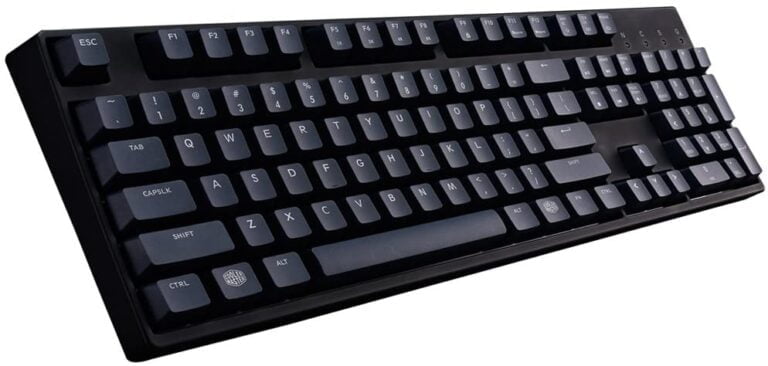
CM Storm QuickFire Rapid – Best Mechanical Keyboard (Best Compact Mechanical Keyboard for Programming)
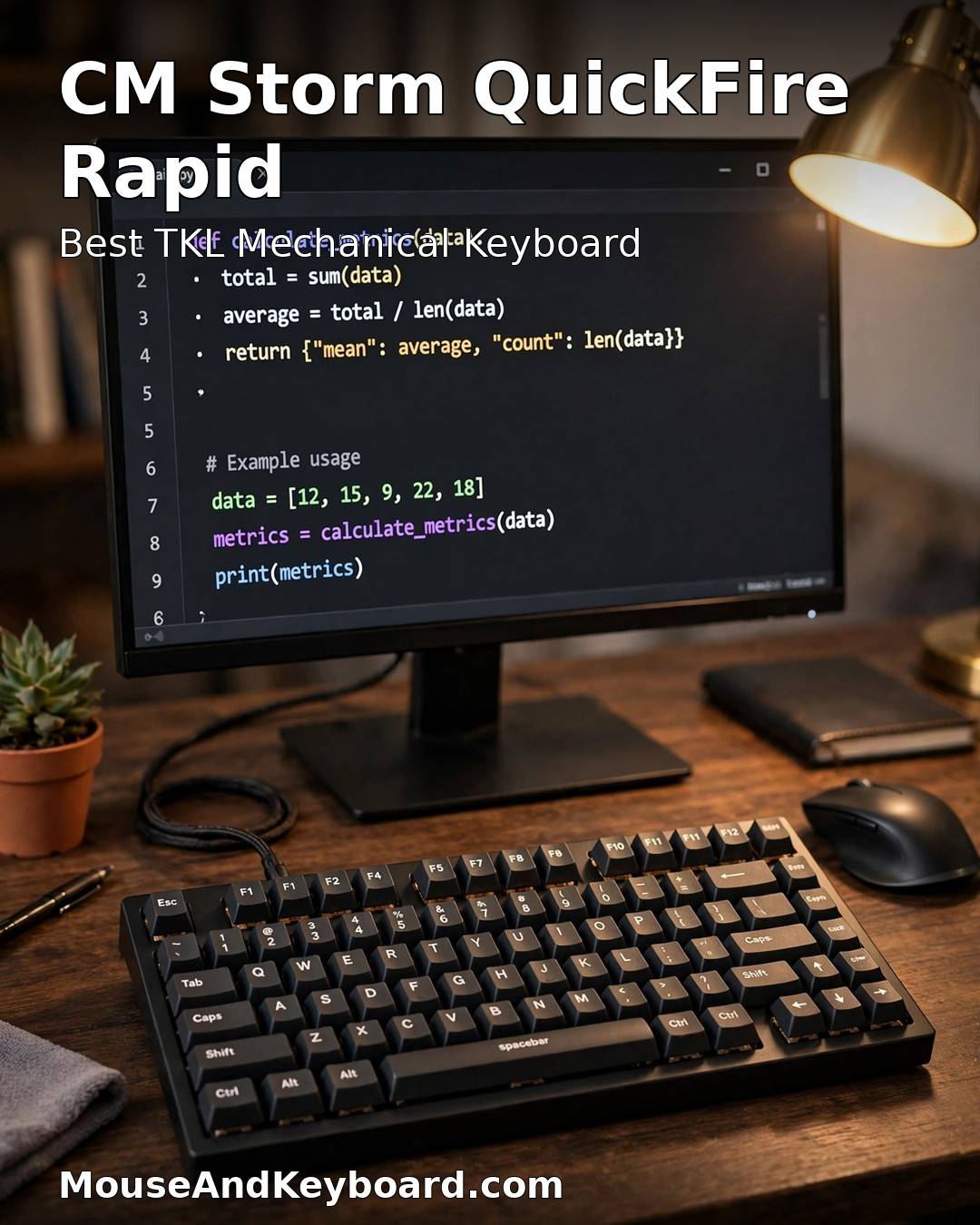
You’ve probably heard everyone talking about mechanical keyboards, and you may be wondering what all the fuss is about. Well, I recommend you try the CM Storm QuickFire Rapid, and then you’ll understand why everyone is raving about it. What makes it so great? Let’s start with its size. By removing the numpad completely, they have significantly reduced the keyboard’s footprint. This is a fantastic move because it allows for easier mouse access and frees up more space on my workstation. To be honest, I don’t use the numpad very often anyway.
This keyboard features brown Cherry MX mechanical switches, which make typing an absolute pleasure. Since these switches register a keypress before bottoming out, I was able to type faster and with less effort. The keys on this keyboard are laser-etched, which means they can withstand heavy use without wearing out. I also appreciate the fact that they made the cables detachable. It would have been nice if the keyboard were completely wireless, but at least now you don’t have to wrap the cable around the keyboard when carrying it around.
It also allows you to use the PS/2 connector if you’re using an older computer model. This is beneficial because if the cable develops a problem, you can replace it instead of replacing the entire keyboard. PS/2 users will benefit from the N-Key rollover feature, which allows you to press multiple keys at the same time. This is similar to the anti-ghosting feature present for USB connections. I type really fast and sometimes end up pressing the next key before I’ve released the first one. These features ensure that every key I press will be registered.
The QuickFire also includes some additional keys and a keycap puller in the package. While these keys may not be as useful for programmers as they are for gamers, I think they’re great because they introduce the concept of key customization. Some programmers prefer minimalistic key designs, and this keyboard allows you to replace the stock keys with your preferred ones. I tried using the keycap remover, and it’s a relatively easy process. This keyboard also comes with options for red and blue switches, catering to different typing preferences.
Who is the CM Storm QuickFire Rapid best for? It suits programmers who want a first proper mechanical keyboard that keeps the full alphanumeric block, arrow keys, and function row but drops the number pad. A tenkeyless (TKL) mechanical keyboard like this one is often considered the sweet spot for coding: you keep everything your editor shortcuts need, you gain mouse room, and tactile switches such as Cherry MX Browns give clear feedback without the loud click of blue switches.
Switch choice tip: if you share a room or take calls, choose brown (tactile) or red (linear) switches instead of blue (clicky). We explain the differences in the switch guide further down this page. If you also want a dedicated typing keyboard for writing alongside your coding board, see our guide to the best keyboards for writers and fast typing.
Top Features
Check Latest Price and User Reviews on Amazon
More Best Keyboards for Programmers in 2026 (Newer Picks Worth Considering)
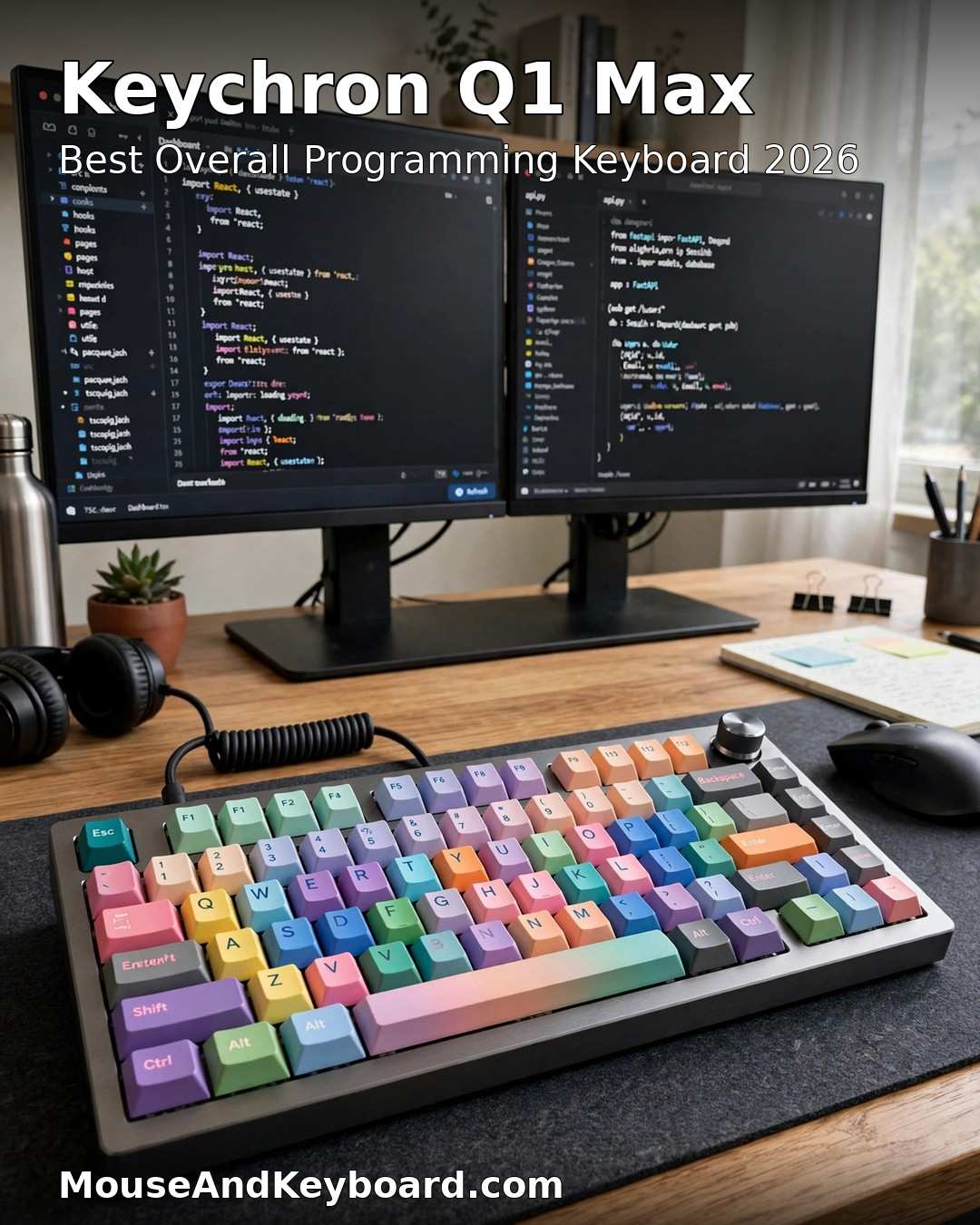
The five keyboards above are proven designs, but the programming keyboard market has moved on. Current buying guides for developers keep coming back to the same themes: compact 75% and tenkeyless layouts, hot-swappable switches, QMK/VIA remapping, tri-mode wireless (wired, Bluetooth, and 2.4 GHz), and split ergonomic designs for long-term comfort. If you want to compare newer models alongside the classics, these are the keyboards most often recommended for coding right now.
| Keyboard | Best For | Layout / Style | Why Programmers Choose It |
|---|---|---|---|
| Keychron Q1 Max | Best overall mechanical keyboard for most programmers | 75% layout | Keeps arrow and function keys, supports QMK/VIA remapping, hot-swap sockets, and wired, Bluetooth, and 2.4 GHz connections. |
| Keychron V5 Max / K10 Max | Best value if you still want a number pad | 96% and full-size | Wireless, hot-swappable, and programmable at a lower price than many premium boards. |
| HHKB Professional Hybrid Type-S | Best for Unix, Linux, and terminal users | Compact 60% Topre | Classic HHKB layout with Bluetooth, ideal for keyboard-driven workflows. |
| Kinesis Advantage360 Professional | Best for serious wrist pain and RSI concerns | Split, contoured, tentable | Wireless, fully programmable, with deep keywells and thumb clusters to reduce finger and wrist strain. |
| ZSA Voyager | Best compact split ergonomic keyboard | Split, low-profile | Portable split design with open, programmable firmware for custom layers. |
| MoErgo Glove80 | Best concave ergonomic keyboard | Split, concave, wireless | Curved key wells that suit long coding sessions and heavy shortcut use. |
| Logitech ERGO K860 | Best ergonomic keyboard with a low learning curve | Curved split, wireless | Familiar layout with a cushioned wrist rest, so it is easier to adapt to than a fully split board. |
| Logitech MX Keys S | Best wireless keyboard for multi-device workflows | Low-profile full-size | Cross-platform wireless typing for developers who jump between a laptop, desktop, and tablet. |
| NuPhy Air75 V2 | Best low-profile keyboard for macOS developers | 75% low-profile | Slim, portable, and well suited to Mac-based coding setups. |
Models, firmware support, and pricing change frequently. Check each manufacturer’s page for the latest specifications before purchasing.
Best Wireless Keyboard for Programming
Modern wireless keyboards are perfectly fast enough for coding. A tri-mode keyboard, which supports a wired USB connection, Bluetooth, and a 2.4 GHz dongle, gives you the most flexibility: use Bluetooth to hop between a laptop and tablet, or switch to the wired or 2.4 GHz mode at your desk for the most stable connection. If you move between Windows and macOS, a keyboard with a physical OS switch makes it simple to swap the Command and Option keys to match your system. For a deeper look at RF vs Bluetooth trade-offs, see our best wireless keyboards buyer guide.
Best Mechanical Keyboard for Programming on a Budget
You do not need to spend a fortune to get a good coding keyboard. Look for a board with a sturdy frame, PBT or well-made keycaps, and hot-swappable sockets so you can change switches later without soldering. Entry-level QMK/VIA boards from established brands often cost much less than premium custom builds while still giving you remapping and a solid typing feel.
Best Split Keyboard for Programmers
If you already notice wrist pain, a fully split, tented keyboard with thumb clusters or a contoured layout is usually the strongest option. Splitting the halves lets your hands sit at shoulder width, which reduces wrist deviation and forearm twisting. Boards such as the Kinesis Advantage360, MoErgo Glove80, and ZSA Voyager are popular here. For an easier transition, a curved split keyboard like the Logitech ERGO K860 or the Microsoft Sculpt reviewed above keeps the familiar layout while still improving your posture. If pain persists, it is worth speaking to a doctor or physiotherapist, because a keyboard is only one part of a healthy workstation.
Programming Keyboard Buyer’s Guide: What to Know Before You Buy
Choosing the right programming keyboard comes down to a few factors, and there is a technical side to it that can confuse first-time buyers. This guide walks through each factor in turn, so you can make your buying decision with confidence.
What Keyboard Size (Form Factor) Is Best for Programming?
Keyboard size, also called form factor, is simply how many keys the board has and how much desk space it takes. The three standard sizes are full-size, tenkeyless (TKL), and compact.
A full-size keyboard has around 104 keys, including a dedicated number pad. It gives you every key you could need, but it is wide, which pushes your mouse further from your body and makes the board harder to carry.
A tenkeyless (TKL) keyboard drops the number pad and keeps everything else. Many programmers never use the number pad, so TKL is a popular middle ground: a smaller footprint, easier mouse access, and no missing function keys.
A compact keyboard goes further and removes the function row and arrow keys as well, leaving them available through a function layer. Newer layouts fill the gaps: a 65% keyboard keeps dedicated arrow keys and a few navigation keys, while a 60% keyboard keeps only the alphanumeric keys and modifiers. A 40% keyboard is smaller still and relies heavily on layers. For most programmers, TKL or 75% is the sweet spot — see the layout comparison table below.
Which Keyboard Layout Is Best for Programming? (Full-Size vs TKL vs 75% vs 65% vs 60%)
For most programmers, a tenkeyless (TKL) or 75% layout is the best balance of function and space. You keep the arrow keys and usually the function row, which matter for debugging shortcuts, while gaining mouse room and a more comfortable shoulder position. Here is how the common keyboard sizes compare for coding:
| Layout | What You Get | Best For |
|---|---|---|
| Full-size (100%) | Everything, including a dedicated number pad | Developers who work with numbers or data entry and have plenty of desk space |
| 96% | Compressed full layout with a number pad | Programmers who want a number pad without the extra width |
| Tenkeyless (TKL / 80%) | No number pad; arrows, navigation cluster, and function row kept | Most programmers; easy mouse access and a familiar layout |
| 75% | Compact layout with arrows and function row in a tight block | Developers who want a small keyboard without giving up function keys |
| 65% | No function row, but dedicated arrow keys and a few navigation keys | Minimalists who still want arrow keys |
| 60% | No arrows, function row, or navigation cluster; uses function layers | Vim and terminal users who prefer keeping hands on the home row |
| 40% | Alpha keys and a few modifiers only | Enthusiasts who enjoy heavy layer-based customization |
What are Mechanical vs. Membrane Keyboards?
Keyboards register keypresses in two main ways: mechanical switches and membrane layers. A membrane keyboard uses rubber domes and a conductive pad under the keys. Pressing a key pushes the pad down to complete a circuit. Membrane keyboards are quiet and inexpensive, which is why they ship with most office PCs, but they give little tactile feedback, so it can be hard to tell when a key has actually registered.
A mechanical keyboard gives every key its own switch. The switch provides a clear actuation point, a consistent feel, and a much longer lifespan than a rubber dome. That feedback is why most programmers prefer mechanical keyboards: you always know when a keypress has registered, and you can choose the exact feel you want. Mechanical boards are also easier to repair and customize, since you can swap keycaps and, on hot-swappable boards, switches.
Mechanical switches come in three main types, usually identified by colour. Most programmers choose tactile or clicky switches, and the choice often comes down to how much noise you can make. The table below compares them.
Best Switches for Programming: Linear vs Tactile vs Clicky
| Switch Type | Typical Color Codes | Feel and Sound | Good For Programming If… |
|---|---|---|---|
| Linear | Red, Black | Smooth keypress with no bump and low noise | You type fast, like a light touch, or work in a shared space |
| Tactile | Brown, Clear | A small bump tells you the key has registered; moderate noise | You want feedback without the loud click. This is the most popular choice for coding. |
| Clicky | Blue, Green | Bump plus an audible click | You enjoy the sound and work alone or with headphones |
In general, light switches need less force and can reduce finger fatigue over a long day, while heavier switches help prevent accidental keypresses. If you are unsure, tactile switches are a safe starting point for programming. Keyboards with hot-swappable sockets let you try different switches later without any soldering.
What Features Should a Programming Keyboard Have?
- QMK/VIA programmability: remap keys, create layers, and build macros for your IDE shortcuts, Git commands, or code snippets without installing special software on every computer.
- Hot-swappable switches: swap switches without soldering, so you can fine-tune the feel of your keyboard as your preferences change.
- Multi-OS support: if you move between Windows, macOS, and Linux, look for a keyboard with OS-specific keycaps or a physical mode switch.
- Wired, Bluetooth, and 2.4 GHz connectivity: a tri-mode keyboard adapts to different setups and makes it easy to share one keyboard across several devices.
- Durable keycaps: PBT keycaps and laser-etched or double-shot legends resist shine and wear from heavy daily typing.
- Dedicated arrow and function keys: debugging, navigation, and refactoring shortcuts often rely on them, so consider a 75% or TKL layout.
- Ergonomic features: adjustable tilt, tenting, a split layout, or a palm rest can all help reduce strain for developers who type many hours a day.
Best Keyboards for Mac and Linux Developers
Mac developers often prefer low-profile wireless keyboards with Mac-friendly keycaps, while Linux users tend to favor programmable boards that work without proprietary drivers. The Happy Hacking layout and QMK/VIA boards are both well loved in terminal-heavy Linux and macOS workflows. Whatever you choose, confirm that the keyboard supports your operating system’s shortcuts out of the box.
How Much Should You Spend on a Programming Keyboard?
Think of your keyboard as a long-term tool. A well-built keyboard that lasts several years is usually a better investment than a cheap one you replace regularly. Budget ergonomic options and entry-level mechanical boards can get you far, while premium split and custom keyboards are worth considering if you code full-time or struggle with discomfort. If you are also upgrading the rest of your desk, pair your keyboard with a comfortable mouse and a wrist rest that fits your board.
Related Guides on MouseAndKeyboard
Keep exploring: our best keyboards for fast typing, best wireless keyboards buyer guide, best TKL mechanical keyboard, best mechanical keyboard under $100, keyboard sizes explained, Cherry MX switches, and best ergonomic mouse pads.
Ergonomic Keyboard Designs Explained
Typing more than four hours a day takes a toll. It is one of the main reasons repetitive strain injury (RSI) and other wrist-pain problems are on the rise among programmers. If you already notice symptoms of RSI, or you have had them before, an ergonomic keyboard is often the best investment you can make. These keyboards use special design features to make typing more comfortable:
- Split / splay keyboards: the keyboard is fully or partially split into two halves. On a regular keyboard your arms angle out from your shoulders in a V shape, which strains the joints. Splitting the keyboard lets your arms sit in a more natural, straight position.
- Tenting: the centre of the keyboard is raised, which relaxes the forearm muscles and improves blood flow. A higher tent is usually more comfortable, but it can also make typing harder at first. Some keyboards offer adjustable tenting so you can find the most comfortable angle.
- Palm support: an extended surface where you can rest your palms while typing. Raising your wrists to the same angle as the keyboard reduces wrist strain. You can also buy wrist rests separately for a standard keyboard — just check the size to make sure it matches your keyboard.
- Contoured design: the keys sit in a concave, bowl-shaped layout, which puts them within easier reach while keeping your hands relaxed. A contoured design can be combined with a palm rest to avoid wrist extension.
It takes a while to get used to an ergonomic keyboard, but most programmers who switch never regret it. Ergonomic boards cost more, but you cannot put a price on your health.
Alternative Keyboard Layouts: Dvorak and Colemak
QWERTY is the standard keyboard layout, but there are alternative layouts that some programmers find faster and more comfortable. You can switch layouts in your operating system settings, and a mechanical keyboard is handy here because you can swap the keycaps to match the new arrangement. On a membrane keyboard the printed letters stay QWERTY, which can be confusing.
The Dvorak layout places the most-used keys on the home row so they are easy to reach, and puts the least-used keys on the bottom row. Colemak is a gentler change: it keeps most of QWERTY and changes only 17 keys, so it is usually easier to learn. Both layouts take time to relearn, but many typists report faster, more comfortable typing once they adjust. If you look down at the keyboard while you type or you do not use all your fingers, switching layouts is also a good time to build proper touch-typing habits.
N-Key Rollover
N-key rollover describes how many keys can be pressed at the same time and still register. The “N” can range from 2 to 6 or more. Most people associate this feature with gaming, but it is useful for programmers too — especially if you type fast and often press the next key before releasing the previous one.
More Frequently Asked Questions: Best Keyboard for Programming and Coding
What is the best keyboard for programming?
The best keyboard for programming is the one that matches your comfort needs and workflow. For most developers, a compact mechanical keyboard in a TKL or 75% layout with tactile switches and QMK/VIA programmability is a great all-round choice. If you experience wrist pain, a split ergonomic keyboard such as the Kinesis Advantage2 is usually a better fit.
Is a mechanical keyboard better for programming?
Many programmers prefer mechanical keyboards because each key has its own switch, which gives clearer feedback, a consistent feel, and a longer lifespan than most membrane keyboards. They are also easier to customize with new keycaps and switches. That said, a quiet membrane keyboard such as the Microsoft Sculpt can still be a great choice if you value a budget-friendly ergonomic design or work in a shared space.
What size keyboard is best for coding?
A tenkeyless or 75% keyboard is the most popular choice, because it keeps the arrow keys and function row while saving desk space for your mouse. If you work with numbers often, a 96% or full-size keyboard keeps the number pad. If you love keyboard-driven workflows and layers, a 60% or 65% keyboard can be more efficient.
Which switches are best for programming: red, brown, or blue?
Brown (tactile) switches are the most common recommendation for coding because they give feedback without being very loud. Red (linear) switches are smooth and quiet, which suits fast typists. Blue (clicky) switches are satisfying but loud, so they are better for private spaces. The best choice is a matter of personal preference, and a hot-swappable keyboard lets you try several.
Are ergonomic keyboards worth it for programmers?
If you code for many hours each day or already feel tension in your wrists, forearms, or shoulders, an ergonomic keyboard is often worth it. Split, tented, and contoured designs keep your hands and arms in a more natural position. Expect a short adjustment period, and remember that good posture, regular breaks, and a well-set-up desk matter too. If you have persistent pain, consult a healthcare professional.
What is QMK or VIA, and do I need it?
QMK is open-source keyboard firmware, and VIA is a user-friendly tool for remapping keys on compatible keyboards. Together they let you reassign keys, build layers, and create macros without installing software on every computer. You do not strictly need them, but they are very helpful for programmers who want shortcuts for their editor, terminal, or Git workflow.
Is a wireless keyboard good for programming?
Yes. Modern wireless keyboards are responsive enough for coding, especially models that offer a 2.4 GHz wireless mode alongside Bluetooth. Wireless keyboards also reduce cable clutter and make it easy to switch between devices. If you want the absolute most stable connection, use the wired or 2.4 GHz mode at your desk.
What is the best keyboard layout for programmers: QWERTY, Dvorak, or Colemak?
QWERTY is the standard and works with every editor shortcut by default. Dvorak and Colemak are alternative layouts that place common letters on the home row, and some typists find them more comfortable. Colemak makes fewer changes to QWERTY, so it is usually easier to learn. Switching layouts takes time, so only try it if you are ready for a temporary dip in speed.
Do I need a number pad for programming?
Most programmers do not need one. A number pad is useful if you often enter numeric data, but removing it gives you more desk space and a more comfortable mouse position. If you still want one occasionally, a 96% keyboard or a split keyboard with a separate number pad, like the Microsoft Sculpt, is a good compromise.
What is the best keyboard for Mac developers?
Look for a keyboard with Mac-friendly keycaps or a Mac/Windows mode switch, along with Bluetooth for easy pairing. Low-profile wireless boards and QMK/VIA keyboards with multi-OS support are popular among macOS developers.
How much should I spend on a keyboard for coding?
A reliable entry-level mechanical or ergonomic keyboard can cost relatively little, while premium split and custom keyboards cost significantly more. Because you will use your keyboard for thousands of hours, it usually makes sense to spend a little extra on one that is comfortable, well built, and built to last.
Conclusion – Best Keyboard for Programming in 2026
That is the full list: five proven keyboards that can make programming more comfortable and more enjoyable. They are all strong in different ways, which is why choosing between them is hard. If I had to pick one favourite, it would be the CM Storm QuickFire Rapid — it is compact, types beautifully, and does not ask you to relearn how to type. Its small footprint keeps your shoulders relaxed, and you can always add a palm rest to protect your wrists.
Keep in mind that the QuickFire Rapid is an older model and can be hard to find new today. If you want the same tenkeyless, tactile-switch experience with modern features, the Keychron V1 in our 2026 picks above is the closest current equivalent.
If you like you can read about the best wireless mouse
Final Thoughts: Choosing the Best Keyboard for Programming in 2026
The best programming keyboard is the one you will enjoy typing on for years. If you are not sure where to start, use this simple rule of thumb: choose a compact mechanical keyboard with tactile switches if you want a dependable all-rounder, choose a split ergonomic keyboard like the Kinesis Advantage2 if you are already feeling wrist or shoulder strain, and choose a budget ergonomic option like the Microsoft Sculpt if you want comfort at a lower price. Add QMK or VIA support, hot-swappable switches, and wireless connectivity if you value customization and flexibility.
Whichever keyboard you pick, pair it with a comfortable mouse, a good desk setup, and regular breaks to protect your wrists over a long programming career. Browse the keyboards above, compare the latest prices, and choose the one that fits the way you work. If you also want a better mouse to go with your new keyboard, see our guide to the best wireless gaming mouse.